
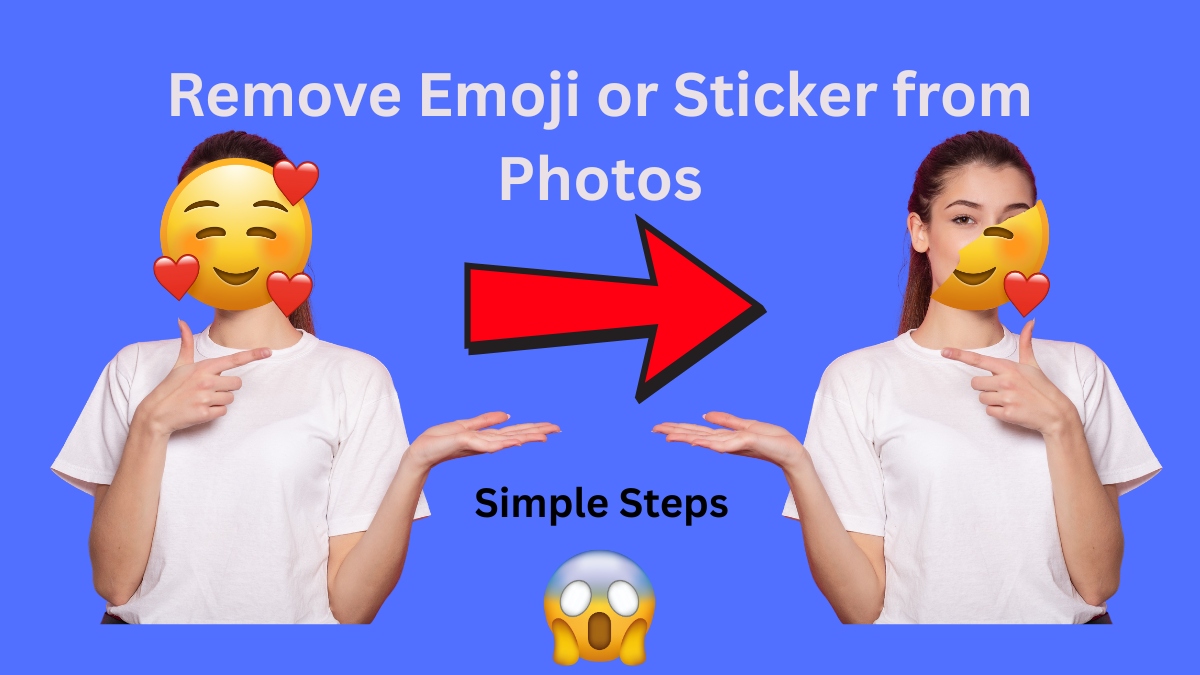
Removing emojis or stickers from photos is the one problem that most people suffer from, because sometimes, someone adds an emoji or a sticker to their pic for fun or to hide his/her identity on social media platforms. That time, they didn’t realize that, and they saved their photos with the emoji and stickers on them. The real problem arises when they need the photo without the emoji. If you are also suffering from that issue, then this guide is for you. You can remove emojis and stickers from photos with the help of your Phone, PC, and Free AI tools.
In this guide, you will learn all these steps, like how to remove emojis or stickers from photos without blurring or ruining the quality. Just follow these methods:
Method 1: Remove Emoji from Photos Using Snapseed (Mobile)
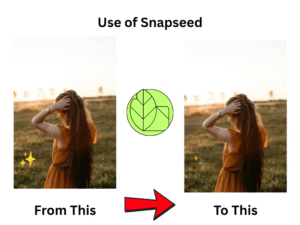
The first method that allows you to remove emoji from photos if you are using a mobile is Snapseed, which is one of the best, easiest, and safest apps by Google. Snapseed is a photo editing app that can be used both by beginners and professionals. This app is free and easy to use, with a diverse range of features. Snapseed is available for both Android and iPhone. You can also use this app without an internet connection.
If you want to remove an emoji, then you have to follow these steps:
🔹 Steps to Follow:
- The first step is to download Snapseed from the Play Store or App Store.
- The second step is to open the app and click on the “+” button to add a photo.
- The third step is to select tools and find healing, and click on it.
- Then you need to zoom in on the emoji for better accuracy and results.
- The next step is to use your finger to gently brush over the emoji or sticker.
- Snapseed will analyze the area and fill the area using surrounding pixels.
- If you feel that the emoji is not removed properly, repeat this process until the area appears smooth and clear.
- The last step: When you feel you are done, click ‘Export’ and save a copy of the photo.
Explanation:
If you are using the Snapseed Healing tool, then this tool basically works by cloning nearby pixels and adjusting them naturally with the surroundings. This tool is most effective for the small emojis or stickers and backgrounds like skies, doors, clothes, and walls.
If the emoji is covering a person’s face, then this tool may not give an accurate result. But if you work on the little details and carefully brush on the emoji, maybe you might get a better result.
💡 Why People Love Snapseed
- Snapseed is completely free to use.
- No worries about ads and watermarks.
- It is fast and simple to use. Even beginners can use this app without any problem.
- It allows you to edit and save high-quality pics.
- A diverse range of features
- If anyone doesn’t have internet, you can use it without an internet connection.
Method 2: Remove Emoji or Sticker Using Adobe Photoshop (PC)
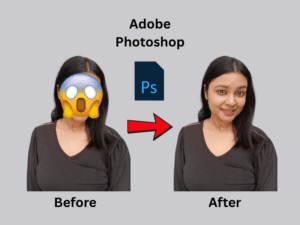
The second method will help you when you have a computer and want to remove an emoji or a sticker. In the second method, Adobe Photoshop is the best option for you. Because it will allow you to have complete control over editing with various tools that will help to replace, remove, or repair any part of a photo. It’s one of the most powerful photo editing software programs by Adobe Inc.
In Adobe Photoshop, you will be able to remove emoji or stickers from photos. Just follow these steps:
🔹 Steps to Follow:
- Open Photoshop in your computer. Go to file and click on open; then you need to select your photo.
- Second step is you need to select the spot healing brush tool from the toolbar.
- Then you need to adjust the size of the brush, which should be slightly larger than the emoji or sticker.
- After adjusting the size, click or paint over the emoji or sticker—Photoshop will automatically fix it.
- If there is room for improvement in texture, you can use the Clone Stamp Tool (S) to manually crop nearby textures.
- After all these steps, review your image and check it carefully, and touch up any rough spots.
- Once you feel that your photo is perfect, go to file click on export and save your photo.
Explanation:
Photoshop can be used to remove large emojis or stickers easily with the help of its advanced and AI based features. Photoshop uses that type of technology that will automatically detect the background of a photo and make adjustments when an emoji is being removed. If you are a beginner, then you can use both the Healing brush and the Clone Stamp tool for better results.
Method 3: Remove Stickers or Emojis Online (No App Needed)
If you don’t want to install an app or use Photoshop, then this method is for you. In this method you can remove emoji or stickers online with the help of AI tools. These tools will allow you to remove emoji or stickers from photos with their special tools within, and these online tools are easy and simple for you. You just need to drag and drop your photo and select the emoji or sticker to remove and watch the magic happen.
🔹 Best Free Online Tools:
- Cleanup.pictures: Just drag and drop your photo there, click on the sticker to be removed, and this site will instantly remove the sticker.
- Pixlr.com: If you want to quickly and simply edit photos, then this website is for you. You can easily remove stickers from photos—just drag and drop.
🔹 Steps:
- You can use one of the above websites.
- Just go their and add your photo
- After that you need to use a brush to highlight the sticker and emoji you want to be removed.
- Then click on Erase or Remove
- Just wait for a few minutes, and after that you can download the clean photo.

Conclusion
In this guide, you learn three methods that can be used to remove emoji or stickers from photos. These three methods are all different from each other and have their own pros and cons. If you want to remove emoji from mobile, then Snapseed is the best way, and for PC Photoshop is the best fit. And if you don’t want to use these two methods, then online AI tools can be used.